Droople App
Hier läuft alles zusammen. Die Droople App ist Ihre zentrale Anlaufstelle, um alle Ihre Daten in Echtzeit zu visualisieren, zu verwalten und zu analysieren. Dank intuitiver Dashboards und leistungsstarker Analysen haben Sie jederzeit den vollständigen Überblick über die Performance Ihrer Installationen.
Überwachen Sie alles – von Sensordaten bis zum Systemzustand – und greifen Sie mühelos auf zentrale Kennzahlen zu, die Sie bei datengestützten Entscheidungen unterstützen. Ob Sie ein einzelnes Gerät oder ein gesamtes Netzwerk verwalten: Die Droople Plattform legt die Power Ihrer Daten direkt in Ihre Hände.
Starten Sie jetzt und schöpfen Sie das volle Potenzial Ihres Systems aus!
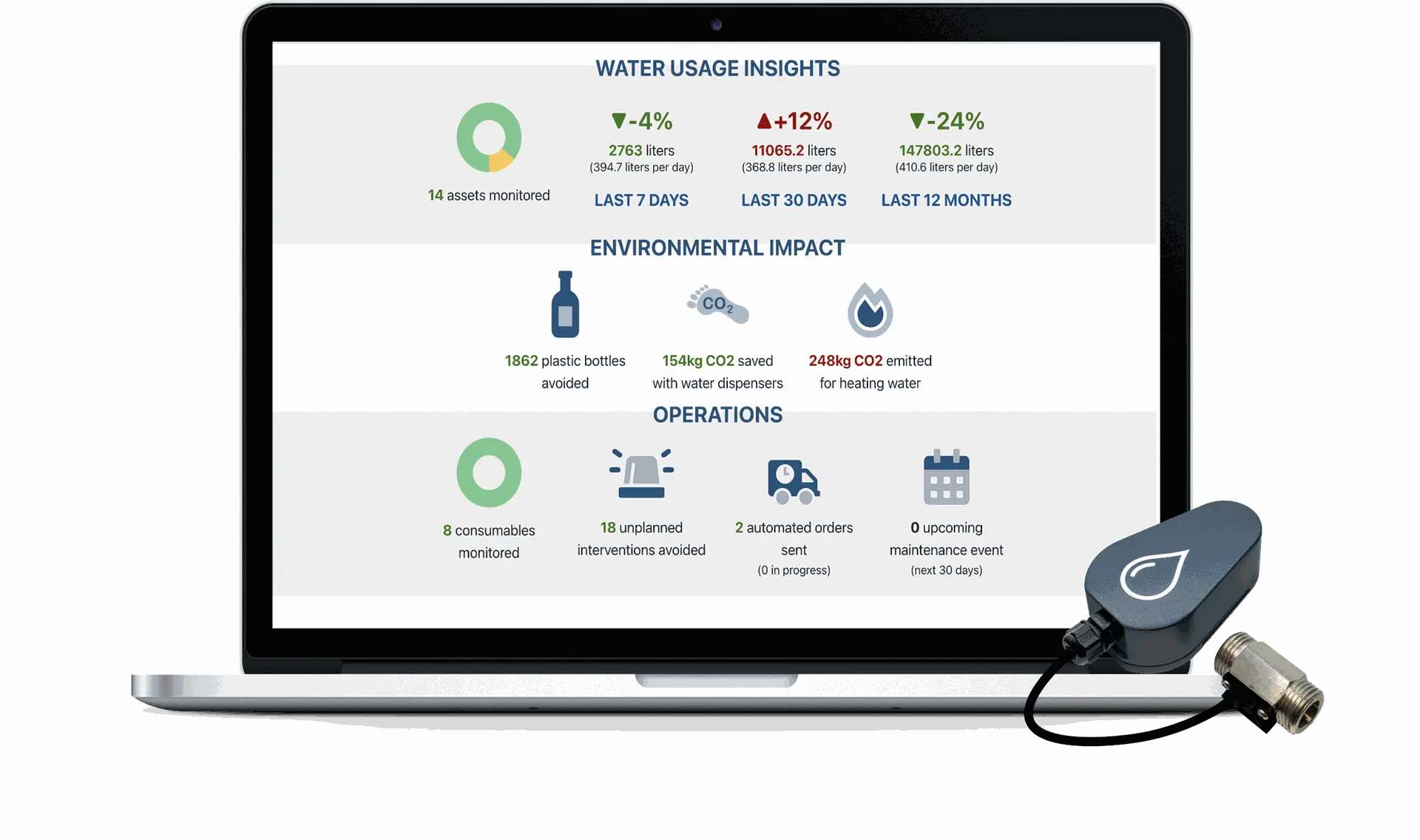
Um auf die Droople Plattform zuzugreifen, melden Sie sich einfach mit Ihren persönlichen Zugangsdaten an unter: app.droople.com. Wenn Sie ein neuer Benutzer sind, erstellen Sie einfach ein Konto, um direkt loszulegen und Zugriff auf alle Ihre Daten und Systemeinstellungen zu erhalten.
Nach dem Einloggen werden Sie von einem intuitiven Dashboard begrüßt. Dies ist Ihr Kontrollzentrum, um Sensordaten zu überwachen, Geräte zu verwalten und die Systemleistung einzusehen.
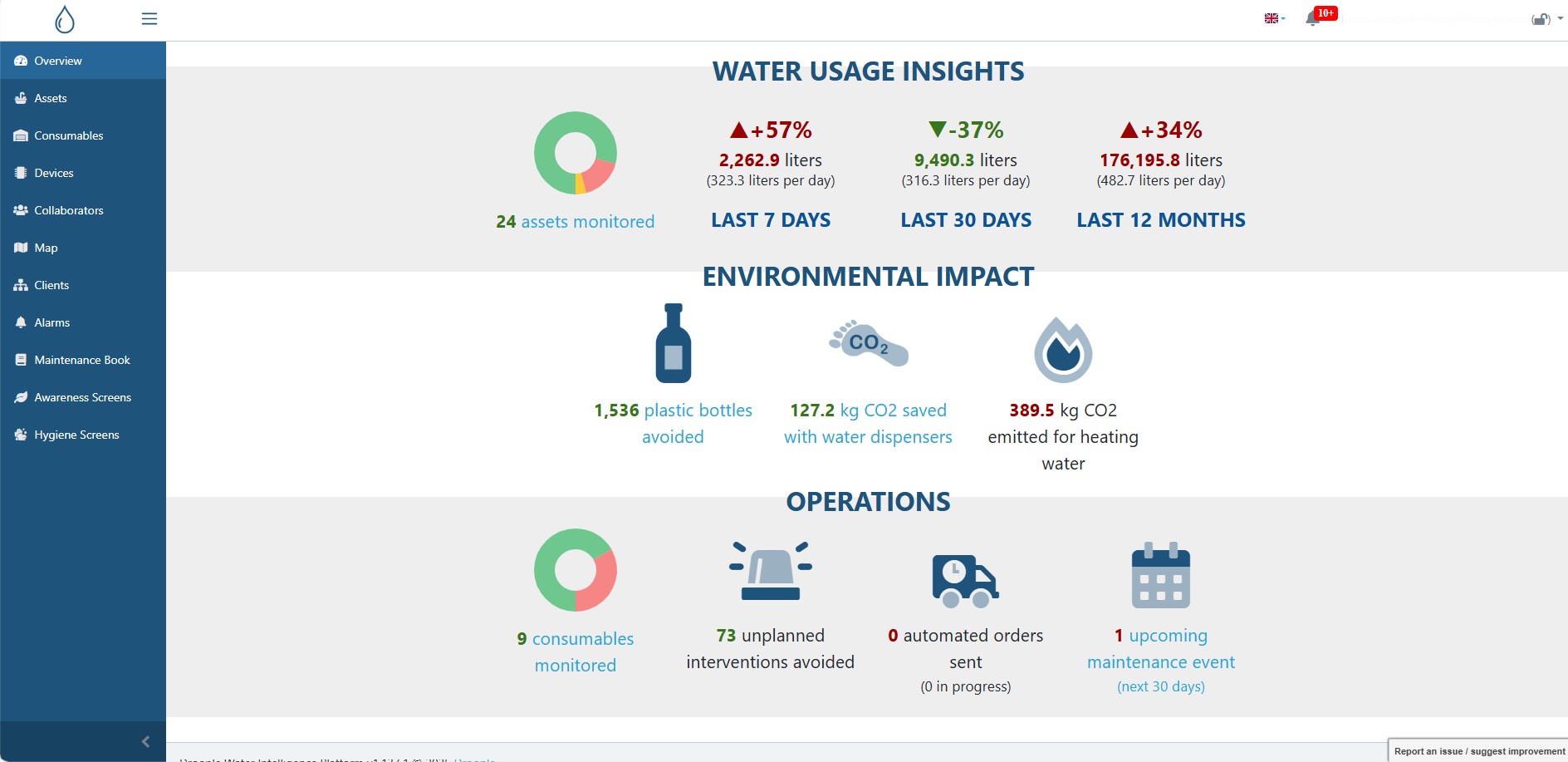
Die Plattform ist benutzerfreundlich gestaltet und übersichtlich aufgebaut, sodass Sie einfach auf Ihre Daten zugreifen können. Auf der linken Seite finden Sie das Hauptnavigationsmenü mit den wichtigsten Bereichen, wie zum Beispiel:
- Objekte
- Ein Objekt bezeichnet die Anlage oder Ausrüstung des Kunden, auf der ein Droople-iLink-Gerät installiert ist. Dazu zählen alle Systeme oder Maschinen, die über die Droople-Plattform überwacht und verwaltet werden.
- Verbrauchsmaterial
- Ein Verbrauchsmaterial ist eine Komponente oder ein Ausrüstungsteil, das für eine begrenzte Nutzungsdauer ausgelegt ist und anschließend ersetzt werden muss, z. B. Filter, Kartuschen, CO2-Flaschen oder andere Teile, die eine regelmäßige Wartung erfordern.
- Funkeinheiten
- Eine Funkeinheit bezeichnet die Droople-iLink-Hardware, die Sie auf der Plattform registriert haben – unabhängig davon, ob sie aktuell aktiviert ist oder nicht. In diesem Bereich können Sie all Ihre iLink-Geräte verwalten, überwachen und konfigurieren.
- Nutzer
- Der Bereich Nutzer ermöglicht es Ihnen, Teammitglieder oder externe Partner, die Zugriff auf die Droople-Plattform haben sollen, hinzuzufügen, zu verwalten und zu betreuen. So wird eine effiziente Zusammenarbeit und ein reibungsloser Datenaustausch sichergestellt.
- Karte
- Die Karte bietet eine visuelle Übersicht über alle Ihre verbundenen Assets und Geräte und zeigt deren genaue Standorte an. So können Sie diese standortübergreifend einfach verwalten und überwachen.
- Kunden
- Im Bereich Kunden können Sie die Informationen und Einstellungen zu den von Ihnen betreuten Kunden verwalten. So stellen Sie eine reibungslose Zusammenarbeit und einen individuell angepassten Service für jeden Kunden sicher.
- Alarme
- Der Bereich Alarme ermöglicht es Ihnen, Benachrichtigungen zu konfigurieren, einzusehen und zu verwalten, z. B. bei Systemanomalien, Störungen oder Wartungsbedarf. So können Sie schnell und gezielt auf Ereignisse reagieren.
- Wartungsbuch
- Das Wartungsbuch dient als digitales Protokoll aller Wartungsaktivitäten an Ihren Assets, Geräten und Verbrauchsmaterialien und stellt eine lückenlose Nachverfolgung sowie Planung der Serviceeinsätze sicher.
- Nutzungs-Auswertung
- Die Funktion Nutzungs-Auswertung ermöglicht es Ihnen, Echtzeitdaten, Nutzungskennzahlen und Informationen zur Nachhaltigkeit anzuzeigen, um das Bewusstsein zu fördern und verantwortungsbewusste Nutzung innerhalb Ihrer Organisation oder bei Ihren Kunden zu unterstützen.
- Hygiene Screens
-
Jeder Bereich ist nur einen Klick entfernt, wodurch die Überwachung und Verwaltung Ihres Systems besonders einfach wird.
Oben rechts auf der Droople-Plattform finden Sie wichtige Funktionen, um Ihre Benutzererfahrung zu personalisieren und stets auf dem Laufenden zu bleiben.
- Nutzerprofil
- Verwalten Sie Ihre Kontodaten und Einstellungen ganz einfach.
- Spracheinstellungen
- Wechseln Sie zwischen Englisch, Französisch oder Deutsch, ganz nach Ihrer Präferenz.
- Benachrichtigungen
- Bleiben Sie informiert mit Echtzeit-Benachrichtigungen zu Systemleistung, Gerätestatus und wichtigen Updates.
Dieser Bereich stellt sicher, dass Sie jederzeit schnellen Zugriff auf Ihre persönlichen Einstellungen und wichtigen Benachrichtigungen haben.
Die Seite Datenvisualisierung auf der Droople-Plattform bietet eine umfassende Übersicht über die Daten Ihres Systems und erleichtert die Analyse sowie Interpretation von Nutzungstrends im Zeitverlauf.
Um auf die Datenvisualisierung zuzugreifen, wechseln Sie im linken Menü auf Objekte und klicken auf das spezifische Objekt, dessen Daten Sie einsehen möchten. Die angezeigten Daten hängen von den auf diesem Asset installierten Sensoren ab.
Oben auf der Seite finden Sie ein Filterwerkzeug, mit dem Sie den Zeitraum für die zu analysierenden Daten auswählen können. Wählen Sie aus vordefinierten Optionen wie „Letzte 7 Tage“ oder „Letzter Monat“ oder legen Sie einen benutzerdefinierten Zeitraum fest – von stündlichen bis hin zu jährlichen Ansichten – einschließlich Formaten wie Rohdaten, stündlich, täglich, wöchentlich, monatlich oder jährlich.
Vergessen Sie nicht, nach dem Einstellen der Filter auf die Aktualisieren-Schaltfläche zu klicken, um die angezeigten Daten zu aktualisieren.

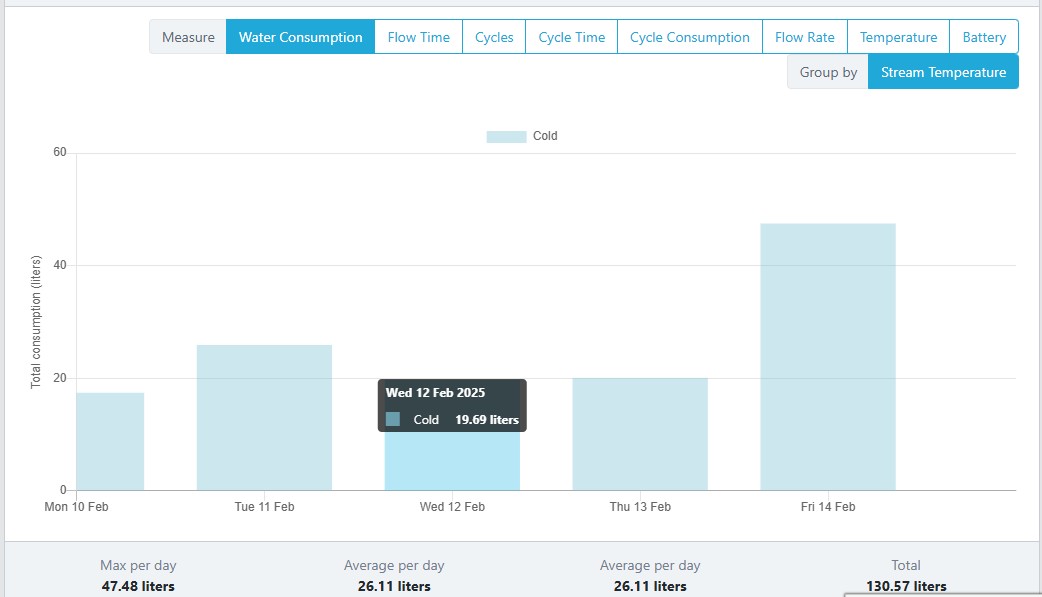
Unterhalb des Filters werden die wichtigsten Kennzahlen für den ausgewählten Zeitraum angezeigt, gefolgt von einem interaktiven Diagramm. Dieses Diagramm ermöglicht die Visualisierung spezifischer Datentypen wie Wasserfluss, Temperatur, Zyklen, Druck und mehr. Wenn Sie mit der Maus über das Diagramm fahren, werden detaillierte Datenpunkte angezeigt, sodass Sie auf einen Blick präzise Einblicke erhalten.
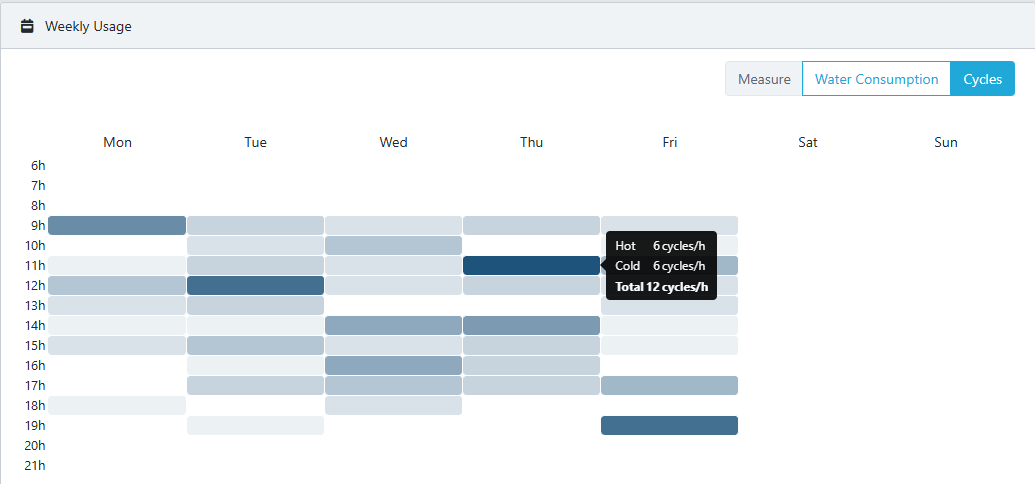
Weiter unten finden Sie das Wochenverbrauchsdiagramm, das eine Heatmap des Wasserverbrauchs oder der Nutzungzyklen pro Woche darstellt. Je dunkler die Farbe, desto höher der Verbrauch in diesem Zeitraum. Wenn Sie mit der Maus über einen Bereich der Heatmap fahren, werden die genauen Verbrauchswerte für diese Woche angezeigt.
Am unteren Ende der Seite zeigt die Plattform alle an das ausgewählte Asset angeschlossenen Verbrauchsmaterialien, wie Filter oder CO₂-Flaschen. Mithilfe historischer Daten kann die Droople-Plattform vorhersagen, wann Verbrauchsmaterialien ausgetauscht werden müssen, sodass Sie Wartungen proaktiv planen und ungeplante Ausfallzeiten vermeiden können.
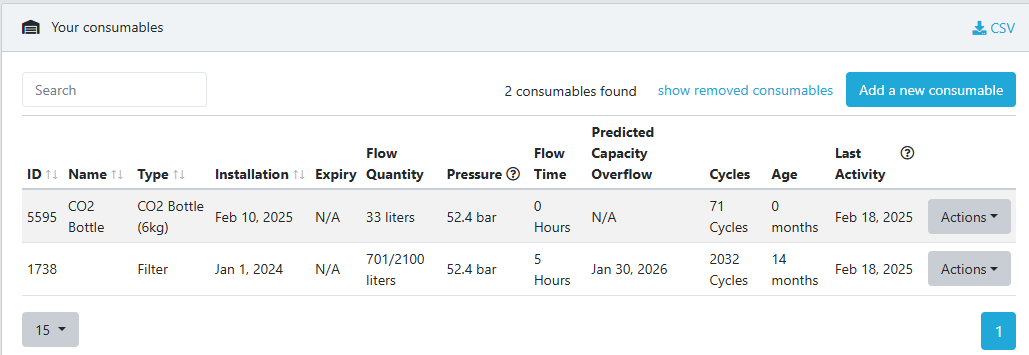
Mit diesen Funktionen stellt die Droople-Plattform sicher, dass Sie alle Informationen haben, die Sie benötigen, um Ihren Wasserverbrauch effizient zu überwachen, zu analysieren und zu verwalten.
Für bestimmte Anwendungen kann der Verbrauchsdatenvergleich mehrerer Objekte wertvolle Erkenntnisse liefern – und die Droople-Plattform macht dies besonders einfach!
Datenvergleich - wie geht es:
- Klicken Sie auf den Objekt Reiter
- Wählen Sie durch das Anklicken der kleinen Boxen neben der Objekte, die zu vergleichende Objekte aus
- Klicken Sie auf den Objekte Vergleichen Button.
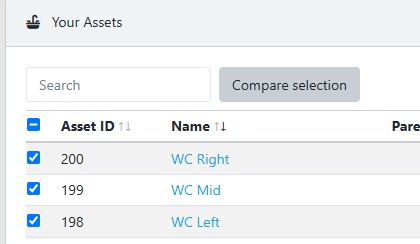
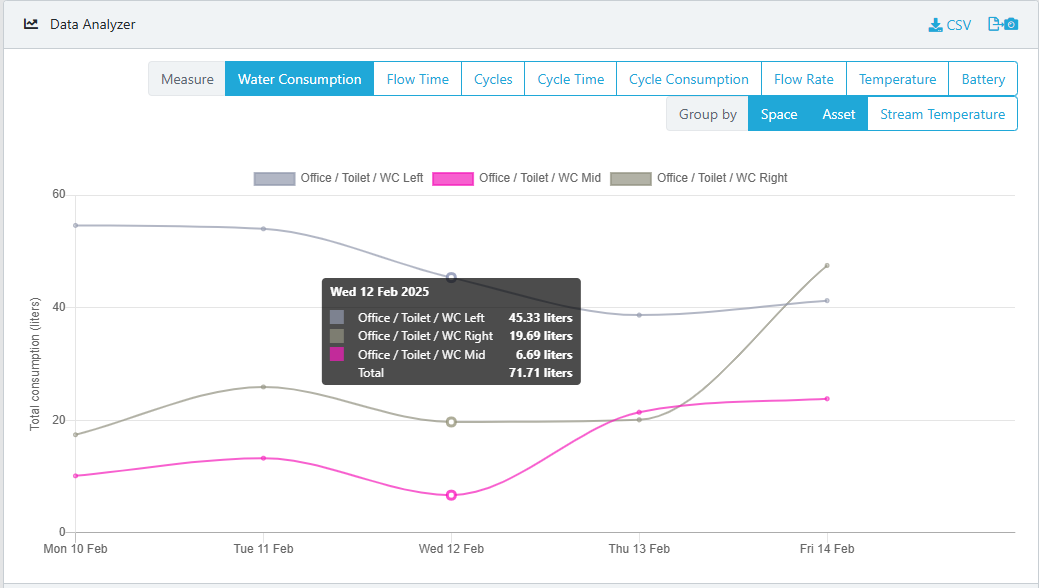
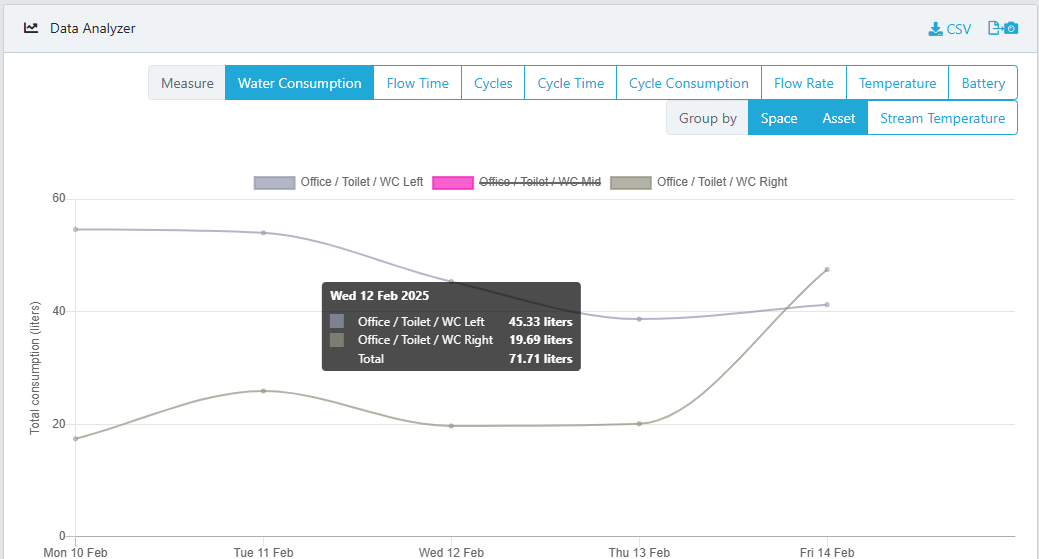
Dadurch wird eine Seiten-an-Seiten-Ansicht geöffnet, die es Ihnen erleichtert, Muster und Zusammenhänge zwischen Ihren Systemen zu erkennen. Zusätzlich können Sie bestimmte Objekte im Dashboard ausblenden, indem Sie einfach auf den Namen des Assets klicken, um bei Bedarf eine fokussiertere Ansicht zu erhalten.
Die Droople-Plattform ermöglicht es Ihnen, problemlos neue Nutzer zu Ihrem Konto hinzuzufügen, sodass die richtigen Personen Zugriff auf die benötigten Daten haben.
Um einen neuen Nutzer hinzuzufügen:
- Wechseln Sie im linken Menü auf den Reiter "Nutzer".
- Klicken Sie den "Einrichten eines neuen Nutzers" Button.
- E-Mailadresse hinterlegen.
- Falls Sie mehrere Kunden verwalten, wählen Sie den Kunden aus, unter welchen der neue Nutzer angelegt werden soll.
- Wählen sie die Zugangsrechte für den Nutzer aus:
- ADMIN: Voller Platformzugang und kann Änderungen vornehmen.
- READ ONLY: Kann nur Daten sichten, ohne Änderungen vornehmen zu können.
- Sie können außerdem Benachrichtigungen für den neuen Mitarbeiter aktivieren, indem Sie das Benachrichtigungsfeld auswählen.
- Klicken Sie auf den Erstellen Button um den Prozess abzuschliessen.
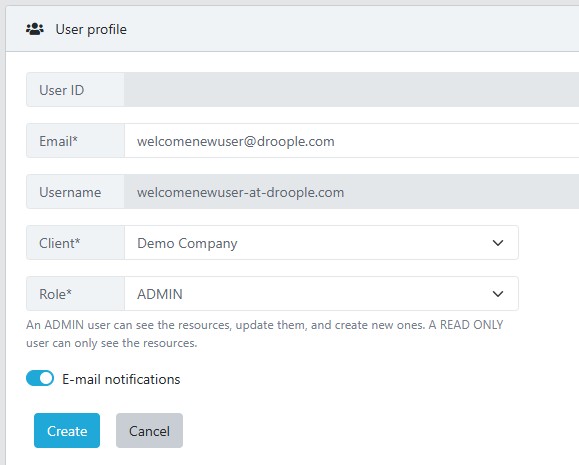
Nach der Erstellung kann der Mitarbeiter auf app.droople.com gehen, seine E-Mail-Adresse eingeben und die Kontoerstellung durch das Festlegen eines Passworts abschließen. Anschließend hat er Zugriff auf das ausgewählte Kundenkonto sowie auf dessen Daten.
Die Droople Plattform unterstützt eine hierarchische Struktur mit Parent- und Child-Accounts, wodurch die Verwaltung mehrerer Kunden erleichtert wird.
- Ein Parent-Account kann die Daten aller zugehörigen Child-Accounts einsehen und verwalten.
- Jeder Child-Account arbeitet unabhängig, bleibt jedoch für den Parent-Account zugänglich.
Neuen "Child"-Kunden hinzufügen:
- Gehen Sie im linken Navigationsmenü auf den Reiter Kunden.
- Klicken Sie Neuen Kunden nizufügen.
- GFeben Sie den Kundennamen ein und klicken Sie auf Erstellen.
Das neue Child-Konto wird automatisch unter dem Parent-Account erstellt.
Unter dem Kunden Reiter können Sie außerdem wichtige Informationen zu jedem Konto einsehen, darunter:
- Die Anzahl der Nutzer pro Kunde
- Die Anzahl der iLinks pro Kunde
- Die Anzahl überwachter Objekte pro Kunde
- Die Anzahl Verbrauchsmaterlialien pro Kunde
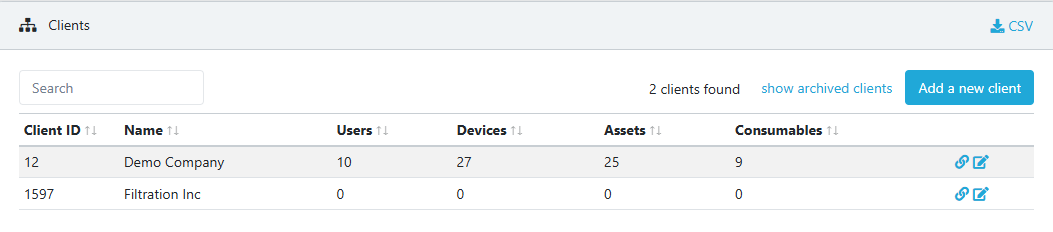
Mit dieser Struktur bietet die Droople Plattform eine flexible und skalierbare Lösung zur nahtlosen Verwaltung mehrerer Kunden.
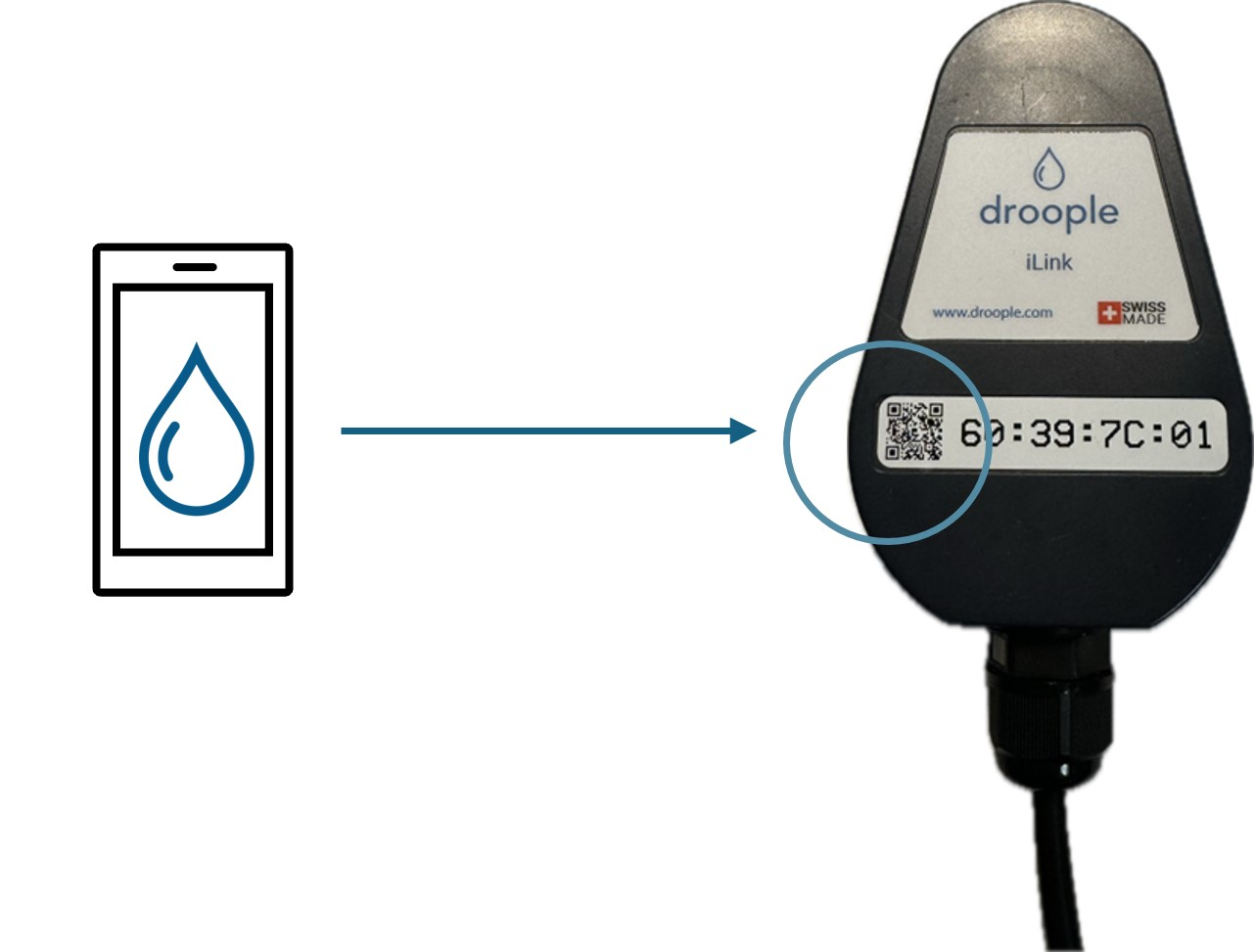
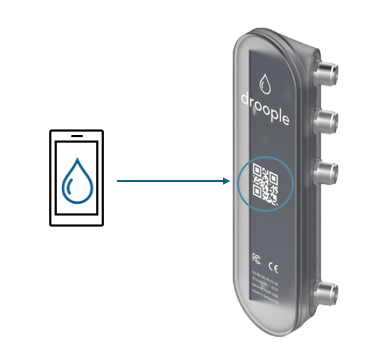
Die Droople-Plattform bietet zwei Möglichkeiten zur Erstellung von Assets, wobei die empfohlene Methode über den iLink-QR-Code erfolgt, um eine nahtlose Einrichtung zu gewährleisten.
Recommended Method: QR Code Scanning
Using your smartphone, simply scan the QR code located on your iLink device to automatically launch the configuration wizard. This guided process ensures accurate and efficient asset creation.
Manual Method: Creating an Asset via the Platform
Alternatively, you can manually create an asset directly on the platform:
- Klicken Sie auf den Objekt Reiter
- Click the Add a new asset button.
- Define the asset’s name, select the appropriate asset type, assign it to the correct client, and set the timezone.
- Click Attach a Device to link your iLink by entering its unique ID number.
- Note: You can attach up to two devices to each asset if you're using an iLink LoRa device, or one device if you're using an iLink NB-IoT device.
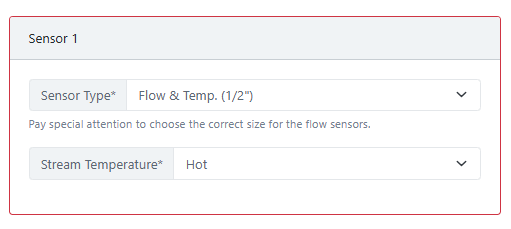
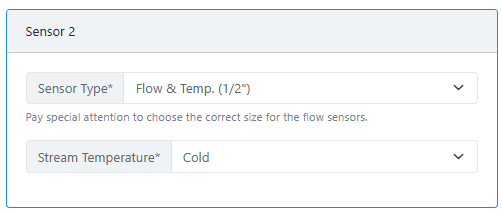
- Select the Sensor Type that matches the installed sensor.
⚠️ It is crucial to select the correct sensor type and size, as any mismatch between the selected sensor and the installed one will result in inaccurate data.
- Finally, click the Create button to complete the asset setup.
Both methods provide flexibility, but using the QR code ensures a smoother and more accurate configuration process. With your assets properly set up, you can begin monitoring and managing your data efficiently through the Droople Platform.
There are two ways to associate consumables with the assets you’ve created:
1. During Asset Creation (Recommended Method)
The easiest way to associate a consumable with an asset is during the asset creation process when using the QR code scanning wizard. This allows you to automatically link a consumable, such as a filter or CO2 bottle, as part of the asset setup.
2. Manually via the Consumables Tab
Alternatively, you can manually associate a consumable to an asset by following these steps:
- Go to the Consumables tab in the left-hand menu.
- Click the Add a new consumable button.
- Fill in the required details:
- Name of the consumable (e.g., Filter, CO2 Bottle)
- Consumable type
- Installation date
- Size (CO2 Bottle)
- Capacity
- Lifetime (this value is provided by the manufacturer before replacement)
- Client
- Associated Asset
Once you’ve completed this, the Droople Platform works its magic, using AI to predict the consumable replacement based on historical consumption data. Whether it's a filter or CO2 bottle, the platform will predict when it’s time for a replacement, helping you stay ahead of maintenance.
Predictive Maintenance with AI
Keep in mind that the platform will need sufficient historical data from the asset to make accurate predictions. As the system gathers more usage data, the predictions will become more refined.
Wartungsbuch
All consumable data, along with usage history and predictions, can be easily accessed through the Maintenance Book tab. This digital maintenance log provides you with up-to-date information, ensuring your equipment is always well-maintained and helping you stay on top of necessary replacements.
With these features, the Droople Platform streamlines consumable management, ensuring that you always know when it’s time for a change—before it’s too late!
In the Droople Platform, alarms are an essential part of monitoring your system and ensuring everything is functioning smoothly. Some alarms are pre-configured by default based on the installed sensors, while others can be customized to meet your specific needs.
Default Alarms
Certain alarms are automatically set depending on the type of sensors installed in your system. These alarms help ensure that critical issues are immediately flagged for attention.

Creating Custom Alarms
If you wish to create your own custom alarms, you can do so by navigating to the Clients tab:
- Click on the Edit button next to the desired client.
- Here, you’ll find various options to set up custom alarms based on the available criteria.
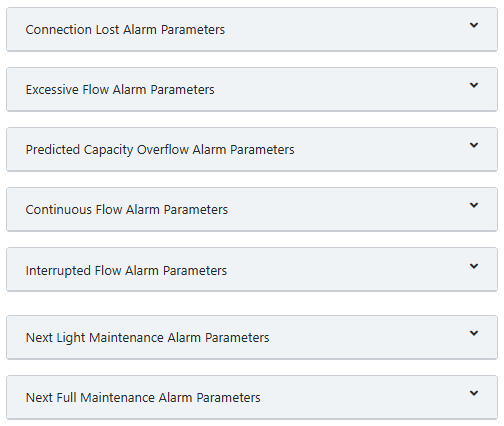
Once your alarms are set, they will be visible in the Alarms tab, where you can monitor their status and see the historical data related to each alarm.
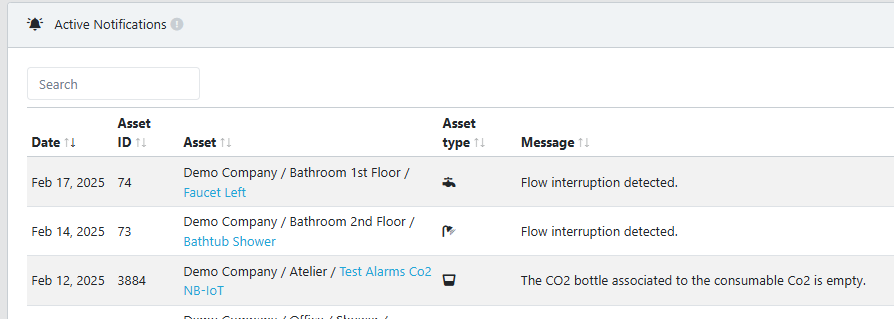
Benachrichtigungen
If notifications are enabled in your user profile, an email will be sent to the designated person whenever an alarm is triggered. Additionally, you can keep track of alerts through the bell icon located at the top-right of the platform.

Viewing Alarms for Sub-Accounts
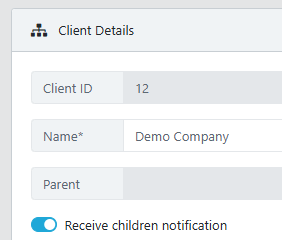
If your user profile is attached to a parent account and you wish to receive alarms for child accounts, make sure the "Receive Children Notifications" option is enabled for the parent account. This allows you to see alarms from all associated child accounts.
Ongoing Improvements
The Droople team is continuously working to improve the alarm system, making it more intuitive and responsive. Future updates may also introduce additional features, including the ability to quantify alarms for even better insights into your system's performance.
The Map tab provides a valuable feature for visualizing the location and status of your assets. If the assets you’ve created are properly configured with an address, they will be displayed on a world map for easy access and monitoring.
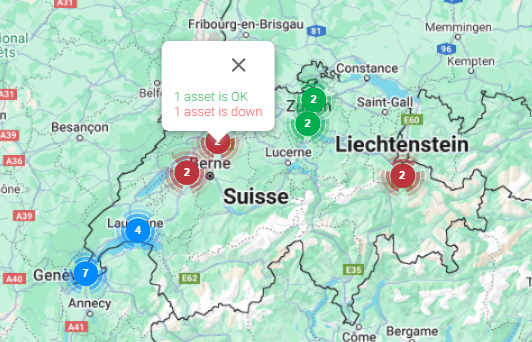
View Asset Locations
By using the map, you can see the geographic locations of all your assets in a single view, giving you a clear overview of your system across various sites. This is especially useful for managing multiple assets located in different regions or countries.
Asset Health at a Glance
The map not only shows the location of each asset but also provides a quick status update on their health. In one glance, you can assess the current condition of your assets without needing to physically visit each site. This allows you to quickly identify any issues and take action as needed.
Easy Access
From the map, you can directly click on any asset to access more detailed information and manage settings. This centralized view helps streamline your workflow and ensures you’re always aware of your assets’ status, no matter where they are located.
The Maintenance Book provides a comprehensive view of all your assets and the associated consumables in a single, easy-to-manage interface. Think of it as your digital maintenance log, streamlining the way you monitor and maintain your system.
Manage Assets and Consumables
Within the Maintenance Book, you can efficiently view and manage all the assets and their linked consumables in one place. It gives you an overview of the current status, usage, and maintenance history of both, helping you stay organized and up-to-date.
Access Consumable Details
By clicking on the small (+) icon next to an asset, you can quickly access details of the consumables attached to it, such as filters, CO2 bottles, and more. This provides you with valuable information on when replacements are needed, ensuring your system operates smoothly.
Perfect for Maintenance Teams
The Maintenance Book is a perfect tool for everyone involved in system maintenance. Whether you are overseeing multiple assets or just managing one, it simplifies tracking and ensures your assets and consumables are always well-maintained and replaced on time.
The "Awareness Screen" feature allows you to generate public dashboards displaying data about your assets. These screens can be used to engage users about water consumption and promote water conservation. You can create various types of awareness screens, such as:
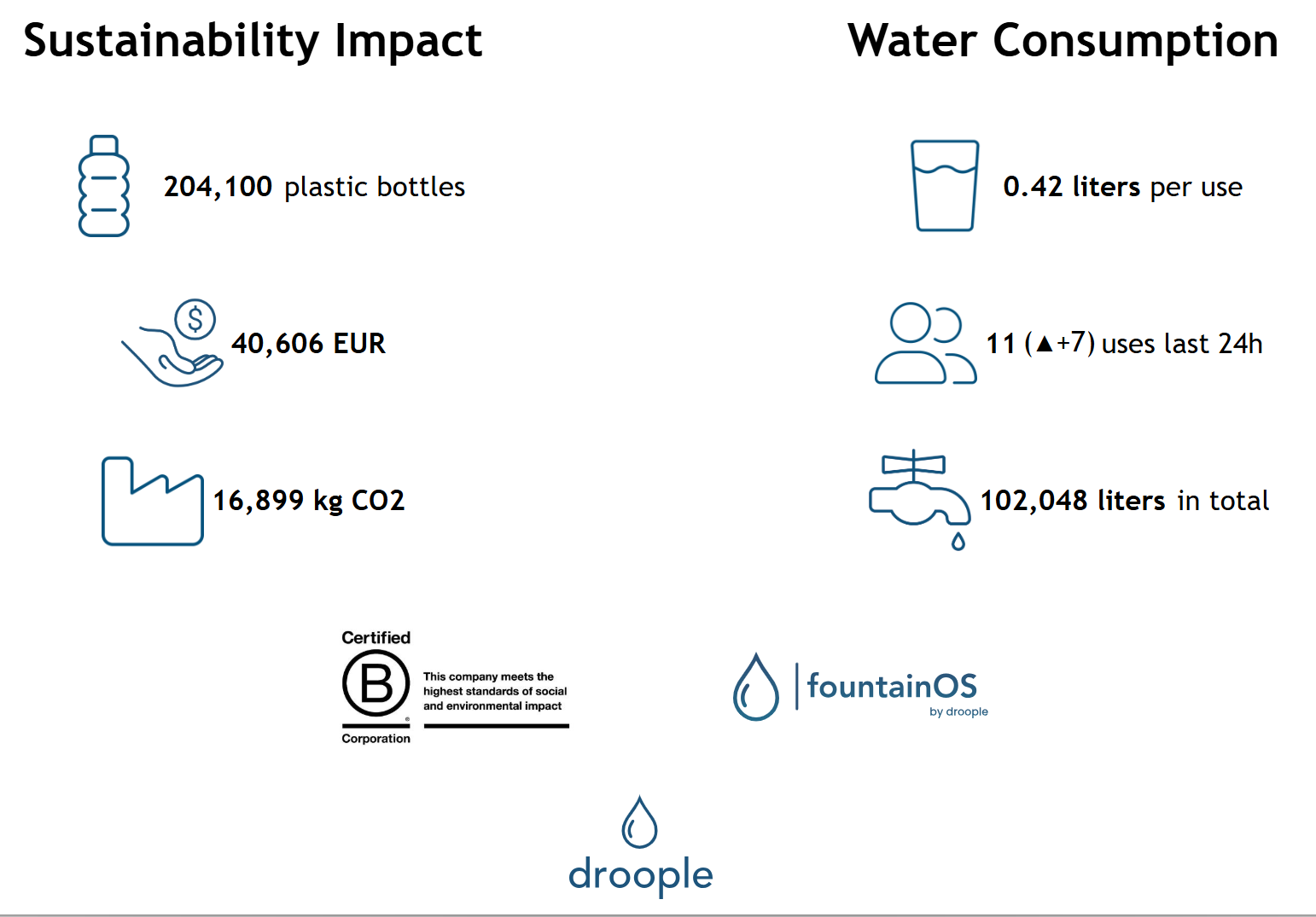
- Sustainability impact screens for water dispensers, showing the reduction in plastic bottle usage (FountainOS).
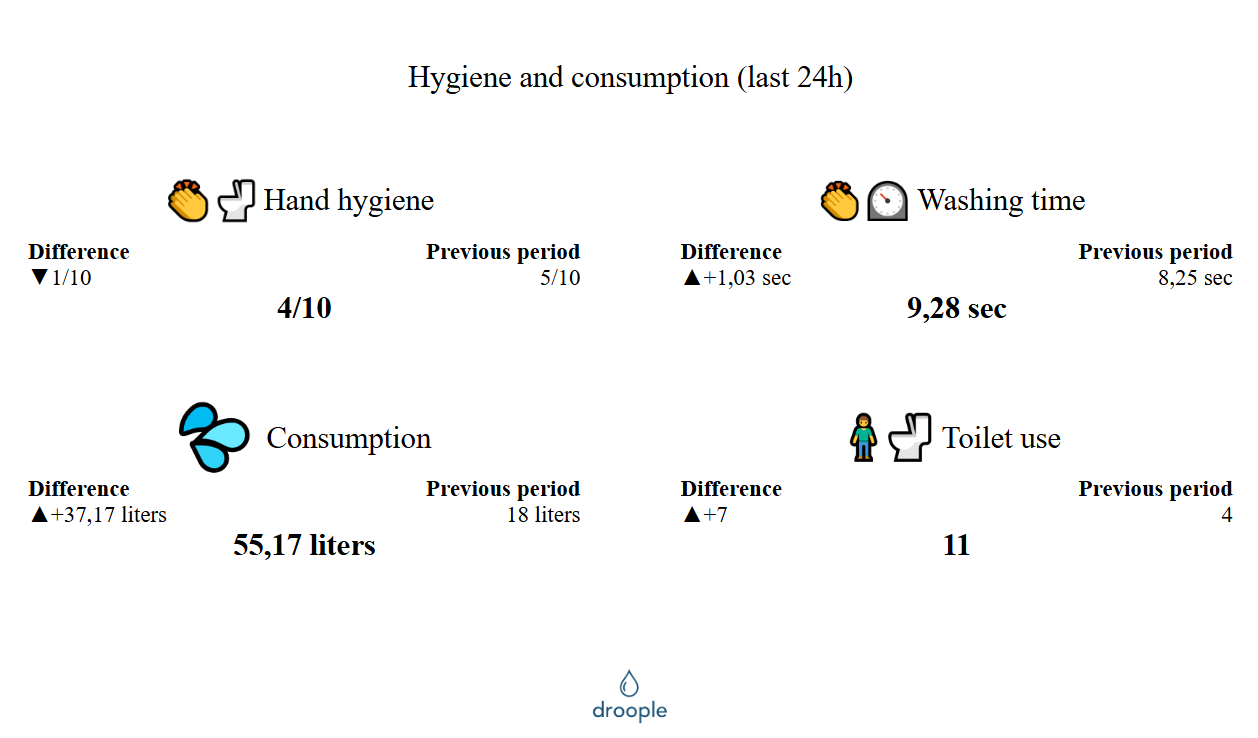
- Hygiene screens for toilet facilities, displaying handwashing times and water usage (SchoolOS).
- Consumption and usage screens for various assets in homes, offices, and other environment
The following features are available for Awareness Screens:
- Fully Parameterized Widgets with an Enhanced Designer: Customize your screen's content and layout with the enhanced designer. Configure data types, icons, text, and time periods.
- Asset Control: Create awareness screens for any asset to showcase your organization's impact.
- "From Activation" Data: Display the cumulative water consumption savings since the equipment's installation, providing a visual representation of your sustainability progress.
- Personalized Templates: Create custom templates to align your awareness screens with your brand and specific needs.
- HTML-Only Public Screens: Ensure compatibility with browsers that have limited JavaScript support. The awareness screen is available in pure HTML, making it viewable on most TVs or screens with a browser.
Managing Awareness Screens
In the "Awareness Screen" menu, you can view, edit, and create new awareness screens from available templates. You can also create custom templates based on existing awareness screens.
Collecting data is important, but showing it is even more powerful. With Droople’s Awareness Screen, you can easily display your data in a visually appealing way that can be shared with your team or displayed for your clients.

Creating a new Awareness Screen
When you create a new awareness screen you can start “from scratch” or use an existing template.
We suggest you start from a template as it will simplify the creation process.
There are multiple existing templates, and you can also create your own templates.
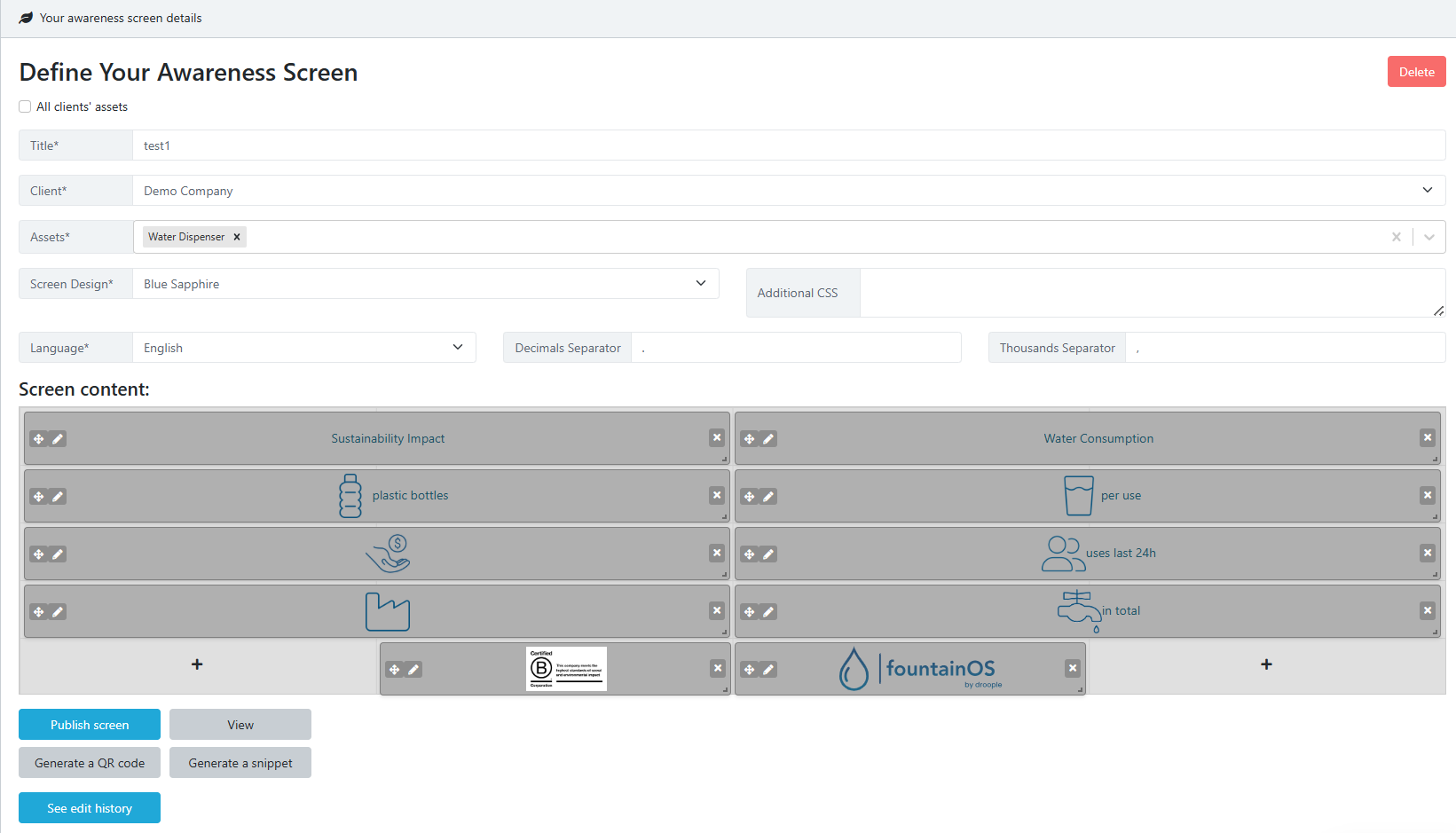
The designer allows you to customize the screen display by selecting the screen design (icons and colors), language (for the units), title (name of the screen), decimal and thousands separator, and screen content (the screen is divided into 4 columns by 5 rows, and each cell can be parameterized to receive a different widget and overflow onto different cells). Once you have designed your screen, you can publish it and view the results, generate a QR code that links directly to your public awareness screen, or obtain a code snippet to embed the awareness screen into your website.
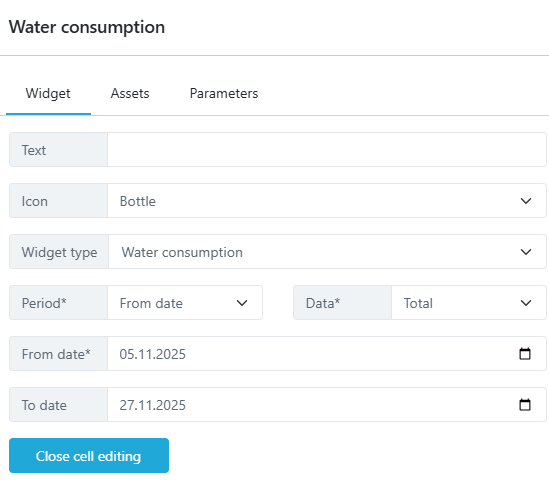
Cell editing allows you to select the widget information, which includes:
- Column and Row spans to resize the widget
- Free text about the widget
- Widget icon, either from a list of existing icons or a user-defined icon from a URL
- Widget type (User defined, Water consumption, Number of uses, Duration of usage, Sustainability impact - Number of bottles, Sustainability impact - Money saved, Sustainability impact - CO2 saved, Hygiene score, Energy to heat water). The User defined type allows for free text or icons.
- Period (Hourly, Daily, Weekly, Monthly, Yearly, From activation, From date) and associated data (average or total, depending on the Period). Daily data can show the difference from the previous period.
You can also select:
- Assets: You can limit the types of assets the widget uses in its calculations. This allows you to, for example, show the difference in consumption between asset types.
- Parameters: You can set parameters for the widget, such as units or other parameters used for calculations.
Fountain OS
School OS
To personalize your experience and align the Droople Platform with your brand, you have the option to replace the Droople logo on the login page and throughout the platform with your own company’s logo.
How to Replace the Logo
Follow these simple steps:
- Go to the Clients tab.
- Click on Edit next to your client account.
- Navigate to the Customization section.
- In this section, you’ll find a field where you can input the URL of the logo you wish to use.
- After entering the logo URL, click the Update button to save the changes.
Once updated, your logo will replace the default Droople logo on the login page and throughout the platform, providing a consistent and branded user experience for your team and clients.
EvercleanOS is a solution developed by Droople to optimize cleaning schedules through the collection of restroom usage data. By analyzing daily usage patterns, EvercleanOS calculates optimal cleaning times based on a maximum allowed number of visits between cleanings. This threshold is customizable for each space according to service agent feedback.
Smart Scheduling and QR Code Integration
When service agents scan the QR code, they can input the current state of the space. The system matches the scan with the closest scheduled cleaning time and updates the cleaning schedule, ensuring accuracy even if scans are not performed exactly on time. Agents can also mark scans as 'Out-of-Schedule Interventions.'
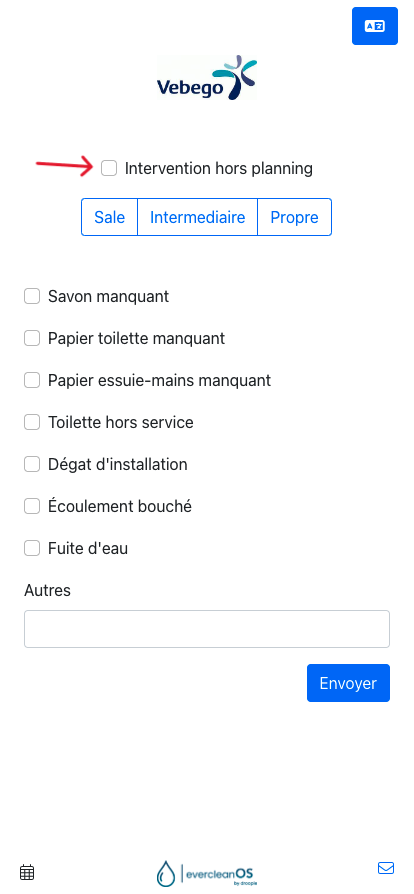
Example
If an area is cleaned at 6 AM (not part of the Everclean schedule) and the next scheduled cleanings are at 9 AM and 10:30 AM:
If marked as out-of-schedule: The last clean is shown as 6 AM and the next as 9 AM.
If not marked as out-of-schedule: The system assigns the scan to the 9 AM cleaning, making the next clean at 10:30 AM.
Home Page Features
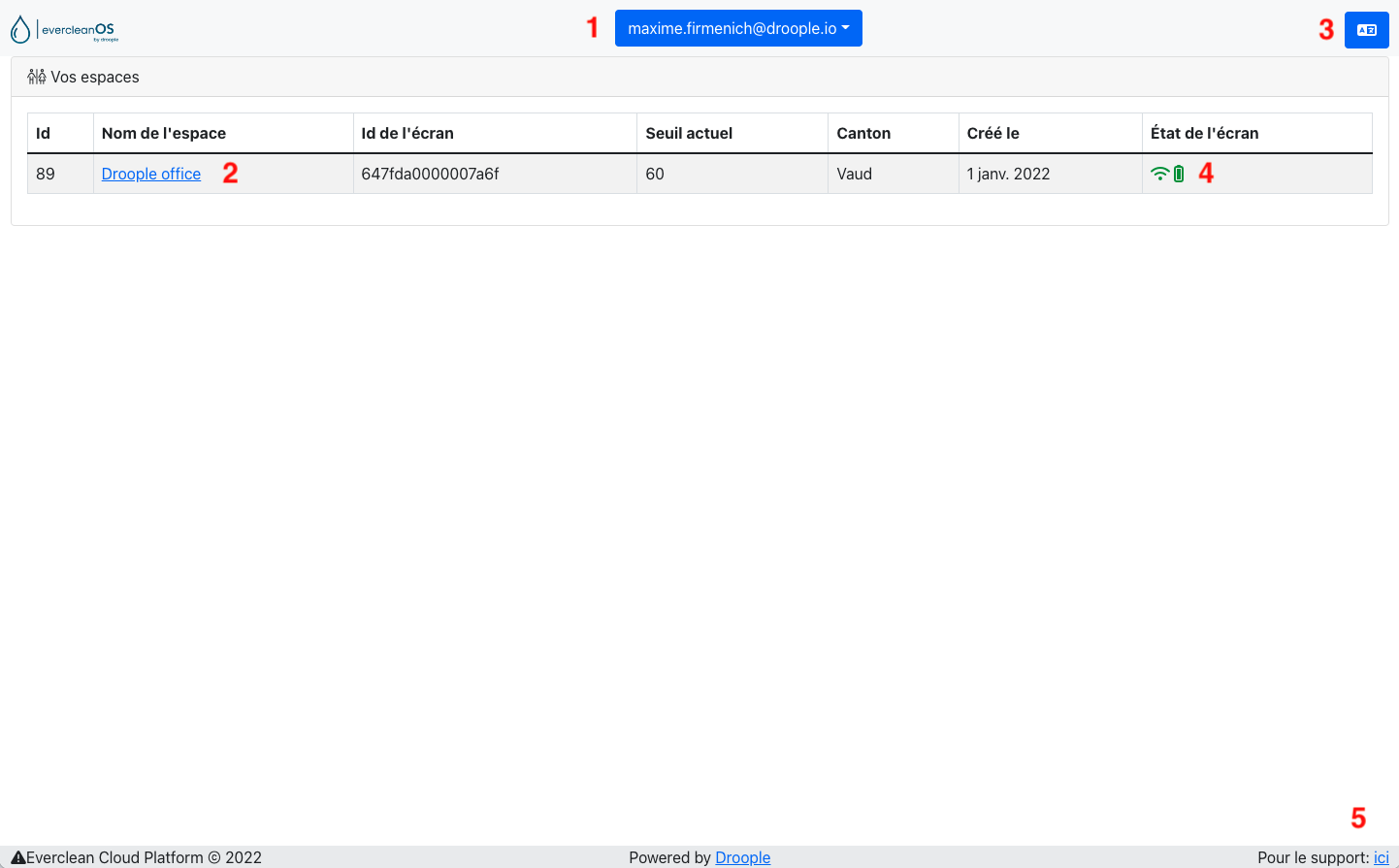
- My Account: Logout or access the main Droople platform.
- My Spaces: View system-calculated cleaning times and adjust usage thresholds or duplicate schedules.
- Language Change: Switch between French and German.
- Screen Status: Check the status of your screen.
- Support Contact: Reach out to Droople support.
Additional Features
- Download cleaning reports with service agent feedback in CSV format.
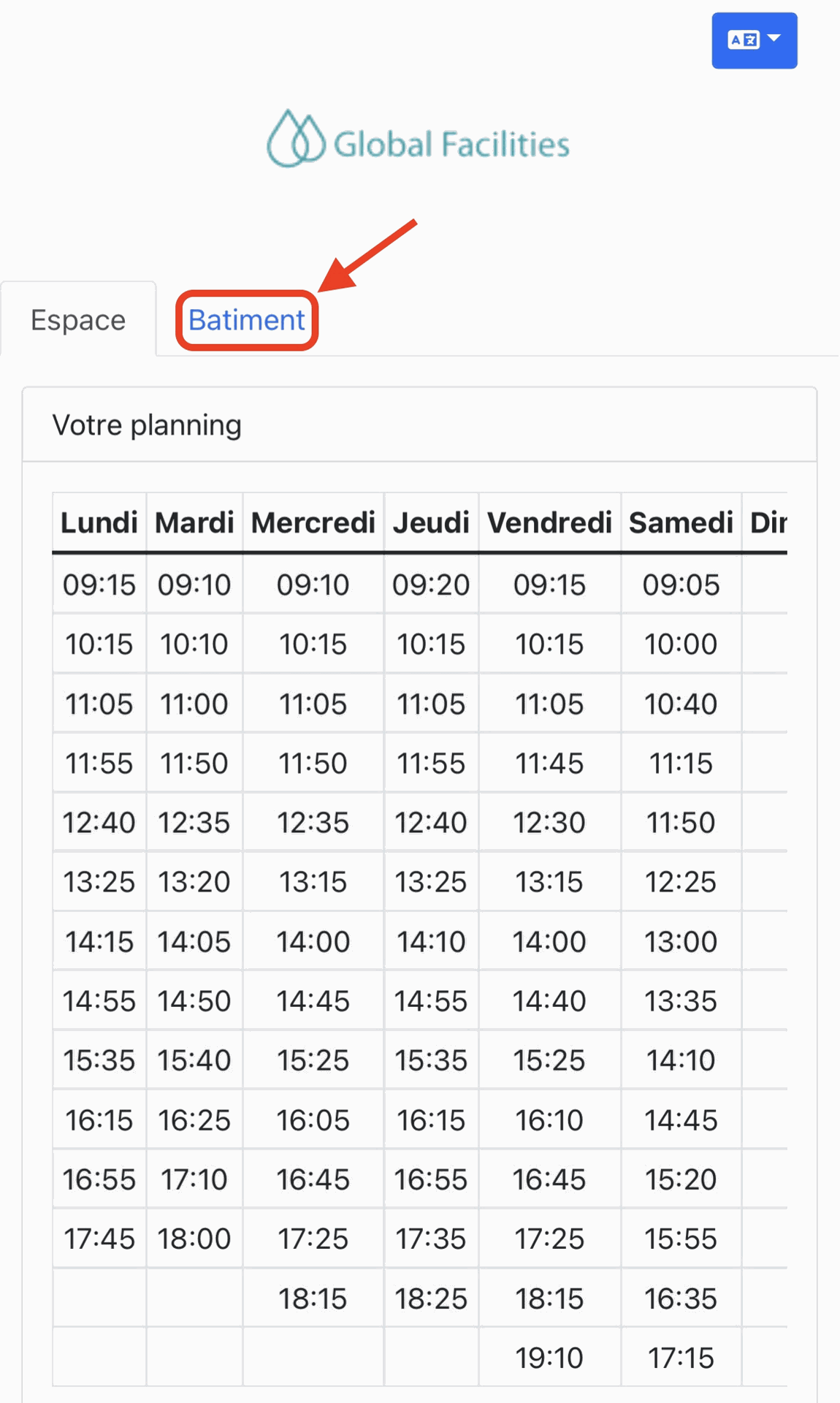
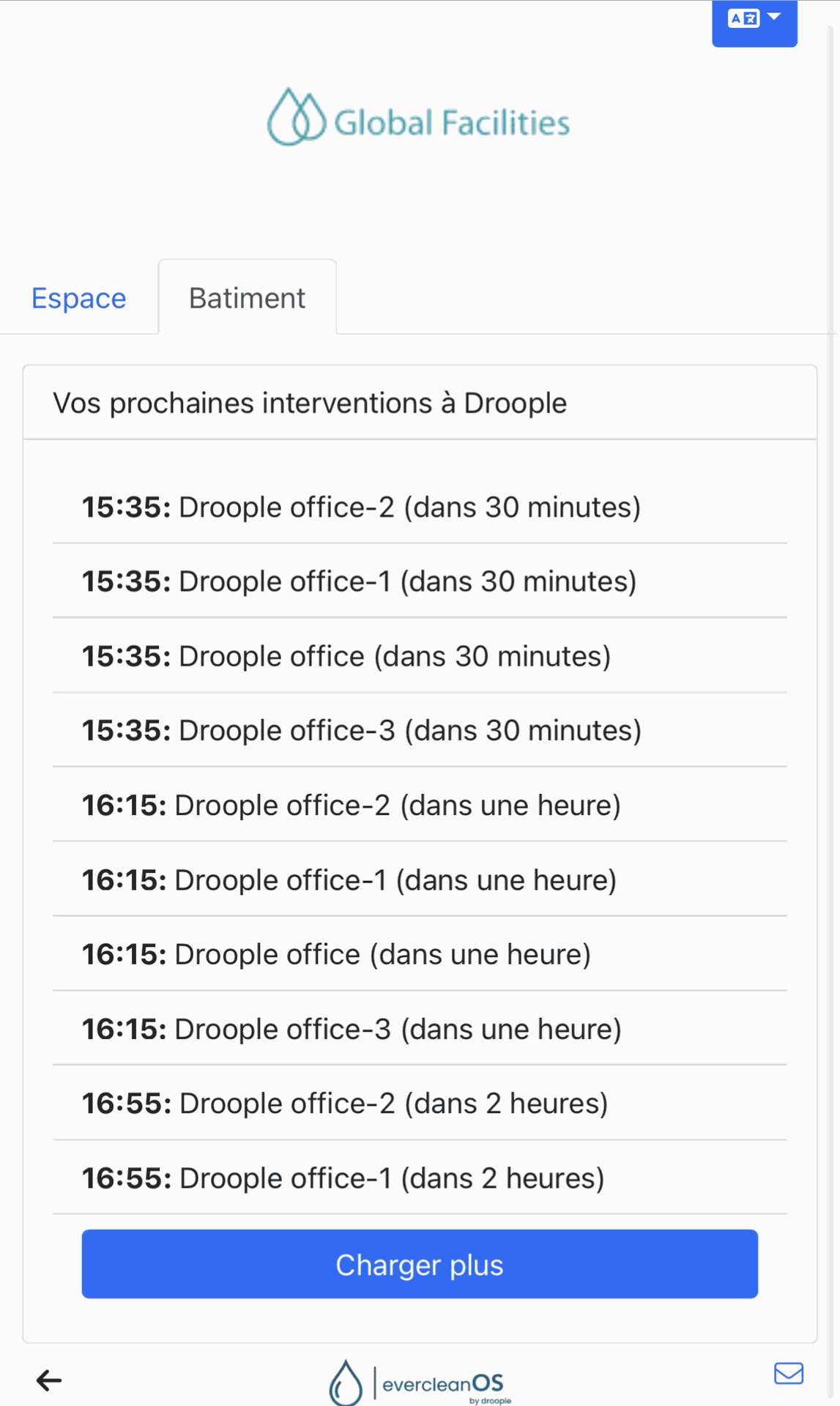
- View upcoming cleaning schedules by scanning the QR code or accessing the building-wide schedule.
EvercleanOS ensures efficient, data-driven cleaning management, enhancing hygiene standards while optimizing maintenance operations.
EvercleanOS User Guide
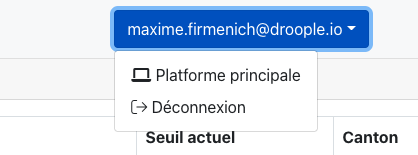
- My Account: Click on your email at the top of the page to log out or access the main Droople platform.
- My Space(s): Clicking on one of your spaces displays the cleaning schedules calculated by our system.
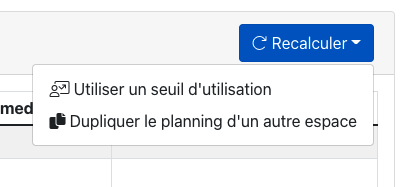
- Recalculate: Adjust the cleaning schedule by changing the usage threshold or duplicating the schedule from another nearby space (e.g., men’s and women’s restrooms).
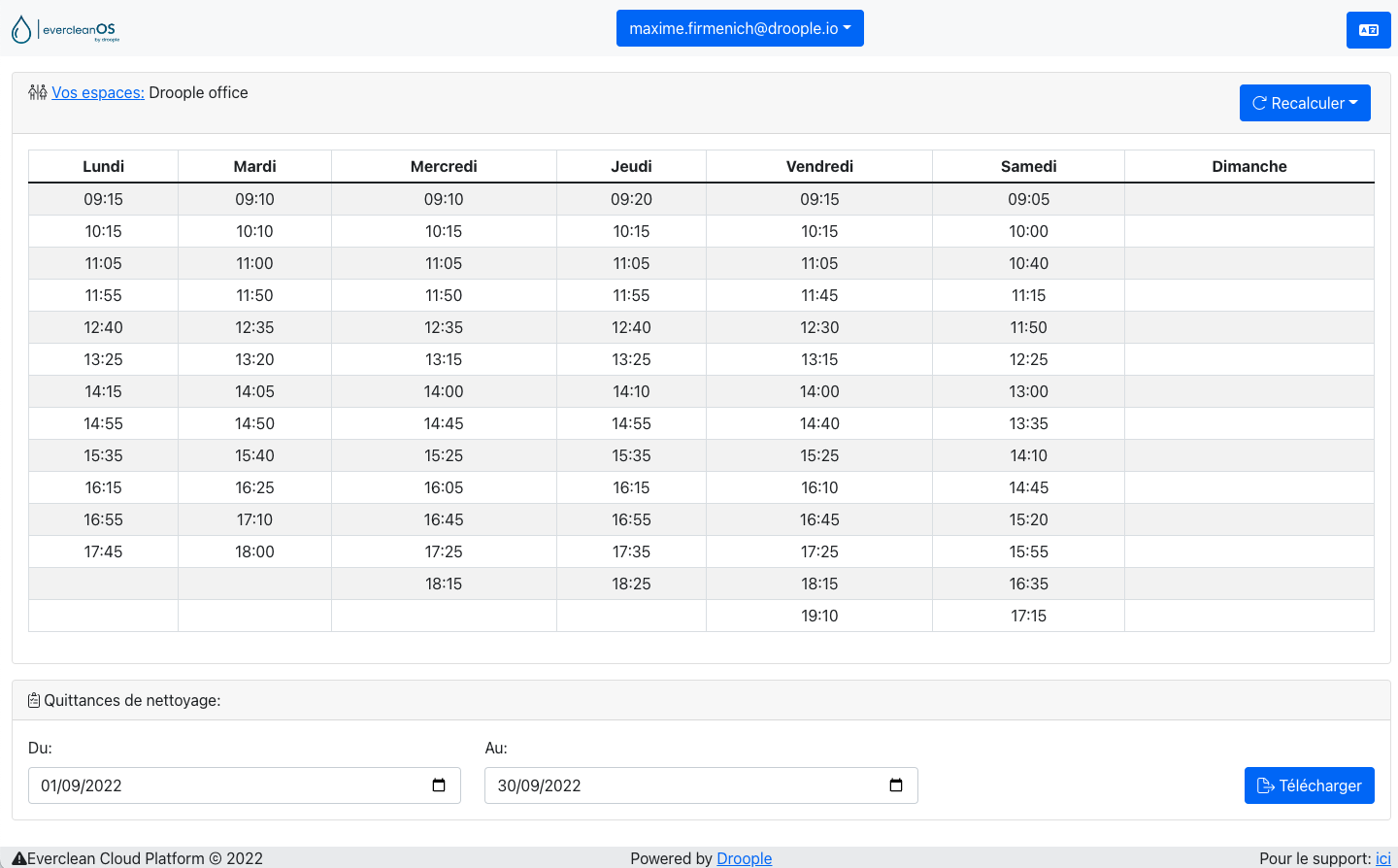
- You can also download cleaning receipts with service agent feedback in CSV format by specifying the desired dates.

Viewing Cleaning Schedules:
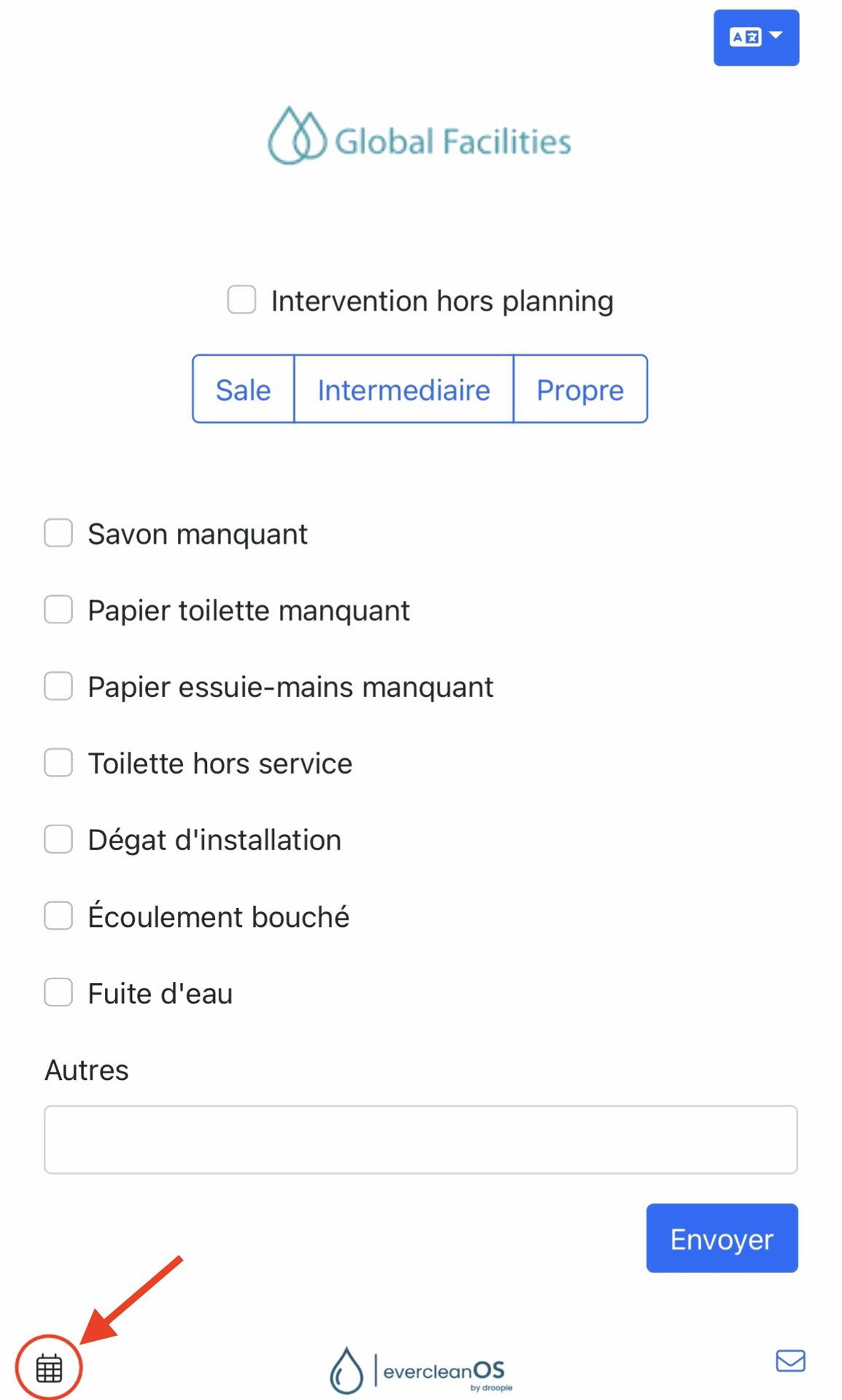
- Scan the QR code of a screen in one of your spaces.
- Click the calendar icon at the bottom left to see upcoming cleaning times for that space.
3. To view all spaces under your responsibility, click the 'Building' button.
💧 Was sind Droops?
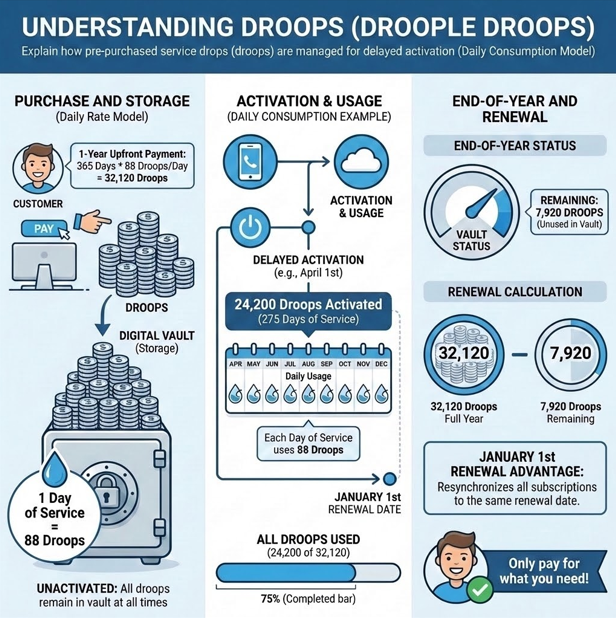
Droops sind Ihr virtuelles Guthaben, das innerhalb der Droople-Plattform verwendet wird, um Ihre vernetzten Geräte und Services zu betreiben.
Beim Kauf eines Droople iLink inklusive Abonnement erhalten Sie automatisch alle Droops, die Sie für ein Jahr benötigen.
Diese Guthaben werden jedoch nicht sofort verbraucht — der Verbrauch beginnt erst, sobald Sie Ihr Gerät auf der Droople-Plattform aktivieren.
Wenn Sie Ihr iLink erhalten, ist es bereits Ihrem Konto zugewiesen (einsatzbereit), muss jedoch erst aktiviert werden, damit es in Betrieb geht und Droops verbraucht.
Alles wird im Voraus bei Zahlung Ihrer Rechnung abgerechnet – ohne versteckte Kosten und ohne spätere Überraschungen.
Anschliessend werden Ihre Droops jeden Januar automatisch nach Bedarf aufgeladen, um das kommende Jahr abzudecken. Nicht verbrauchte Droops aus dem Vorjahr werden übertragen und gutgeschrieben – so zahlen Sie nur für das, was Sie tatsächlich benötigen.
⚙️ Wie werden die Droops verwendet?
Jedes Gerät verbraucht Droops, abhängig davon, wie es eingerichtet ist und welche Funktionen aktiv sind..
Hier ist, was Ihre Droops-Nutzung beeinflussen kann:
💡 Mehr Funktionen = mehr Droops
Die Aktivierung von erweiterten Analysen oder optionalen Funktionen erhöht Ihren Droops-Verbrauch leicht..
📈 Höhere Samplingrate = mehr Details (und mehr Droops)
Wenn Sie eine häufigere Datenerfassung für höhere Präzision anfordern, werden auch zusätzliche Droops verwendet..
Aber keine Sorge – Droops sind immer auf Vorrat auf Ihrem Konto, wenn Sie Ihre Rechnung bezahlt haben.
Das bedeutet, dass Sie immer genau wissen, wofür Sie bezahlen – keine unerwarteten Gebühren im Laufe des Jahres. 🎯
Wie man ein iLink daran hindert, Droops zu verbrauchen?
Wenn Sie ein iLink deaktivieren möchten, damit es keine Droops mehr verbraucht, können Sie dies ganz einfach direkt in der Droople-App tun.
Schritte um ein iLink zu deaktivieren
- Gehe zum Geräte-Tab in der Droople-App.
- Wählen Sie die Geräte-ID aus, die Sie deaktivieren möchten.
- Klicken Sie auf Gerät abstellen.
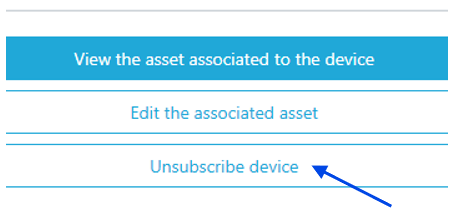
Nachdem Sie das iLink abgemeldet haben, bleibt das Gerät weiterhin sichtbar und verbraucht weiterhin Droops bis zum Ende des aktuellen Abonnementjahres.
Am Ende des Jahres wird es automatisch aufhören, Droops zu verbrauchen, und wird nicht mehr in Ihrem Konto angezeigt.
⚠️ WICHTIG:
Droople-Geräteabonnements funktionieren auf jährlicher Basis.
Um Ihr Abonnement für das folgende Jahr zu kündigen, müssen Sie mindestens 3 Monate vor dem Ende des Jahreszeitraums, also vor dem 30. September, kündigen.
Wenn das Gerät bis zu diesem Datum nicht abgemeldet wird, verlängert sich das Abonnement automatisch um ein weiteres Jahr.
Wenn Sie Hilfe bei der Verwaltung Ihres Geräts benötigen oder Fragen zu Ihrem Abonnement haben, wenden Sie sich bitte an unser Support-Team
At Droople, we value our customers’ feedback and strive to enhance our platform continuously. By clicking the button at the bottom-right corner of the platform, you can report any issues or suggest improvements directly through a simple form.
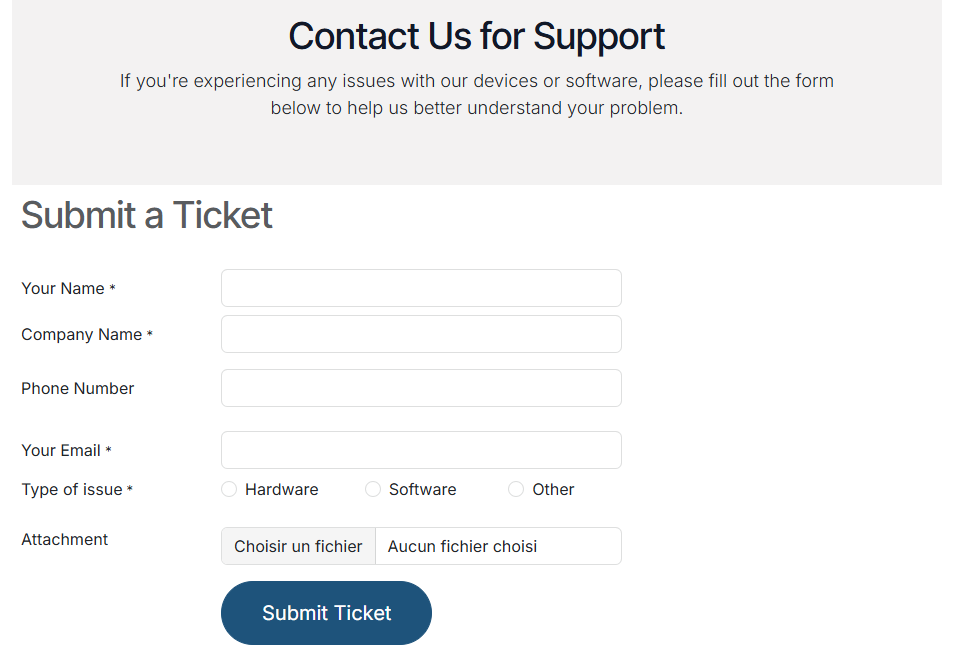
We are committed to listening to our users, and if there is shared interest in implementing a suggested improvement, our team will be more than happy to make it happen. Your input drives our innovation!